
Customer accounts are more than login details.
In Magento 2, customer accounts help the store keep track of buyers, orders, addresses, customer groups, wishlists, reviews, and communication preferences. They also make it possible to offer different prices, discounts, tax rules, and shopping experiences to different types of customers.
Magento 2 gives admins several tools to manage customer information from the backend.
Where to manage customers in Magento 2
In the Magento admin panel, customer accounts are managed from:
Customers → All Customers
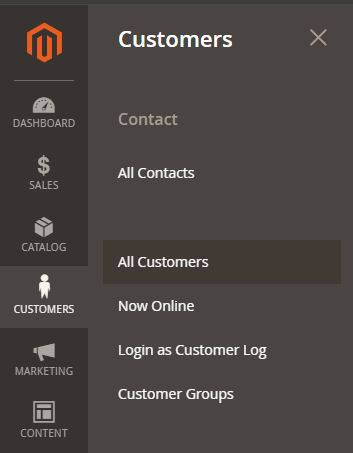
This page shows the customer grid. The Customers grid can be used to find customer accounts, filter the list, change column layout, save views, export data, and apply actions to multiple customer records.
This is the main place where admins can search, review, and manage customer accounts. From this page, admins can usually:
- search customers by name, email, group, website, or other details
- open a customer profile
- create a new customer account manually
- edit customer information
- export customer data
- assign customers to groups
- review customer orders
- manage customer addresses
- check account activity
- apply bulk actions
Creating a new customer account from the admin
Admins can create customer accounts manually.
This can be useful when:
- a customer places an order by phone
- a sales manager creates an account for a wholesale buyer
- a B2B customer needs access before placing orders
- a customer has trouble registering
- the company wants to create accounts for existing offline clients
A typical process is:
- Go to Customers → All Customers
- Click Add New Customer
- Fill in the required account information
- Assign the customer to the correct website and customer group
- Add address information if needed
- Save the customer

For a simple B2C store, most customers will register themselves from the website. For B2B, wholesale, or corporate sales, admin-created accounts can be more common.
Editing customer information
Admins can edit customer account details when needed.
For example, they may update:
- customer name
- email address
- customer group
- phone number
- billing address
- shipping address
- tax information
- newsletter subscription
- password reset options
- custom account fields
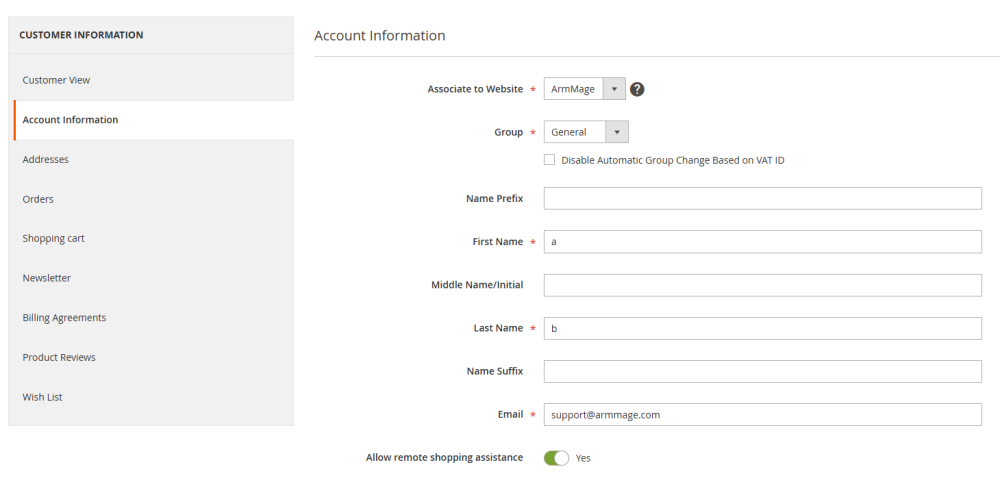
For example, if a customer made a mistake in the address or needs help accessing their account, the admin can open the profile and make the correction.
However, access to customer data should be controlled. Not every admin user should have permission to edit sensitive customer information.
Customer groups
A customer group allows you to organize customers by type. Common examples include:
- General
- Not Logged In
- Wholesale
- Retail
- VIP
- Distributor
- Corporate Client
- Partner
- Tax Exempt
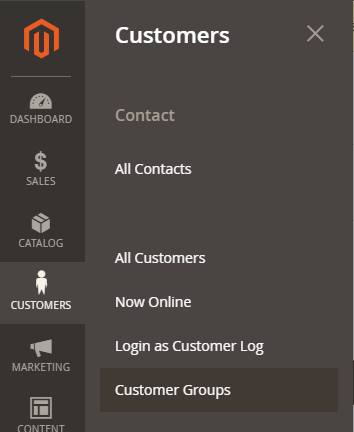
Customer groups can be managed from: Customers → Customer Groups
From there, admins can create, edit, or delete customer groups.
How admins can use customer groups
Customer groups help the store create different experiences for different buyers.
For example:
Wholesale pricing: Wholesale customers can be assigned to a Wholesale group and receive different prices or discounts.
VIP discounts: Loyal customers can be added to a VIP group and receive special promotions.
B2B rules: Corporate customers can be placed in a group with special payment, tax, or delivery terms.
Tax handling: Some customer groups may need different tax rules depending on the business model and region.
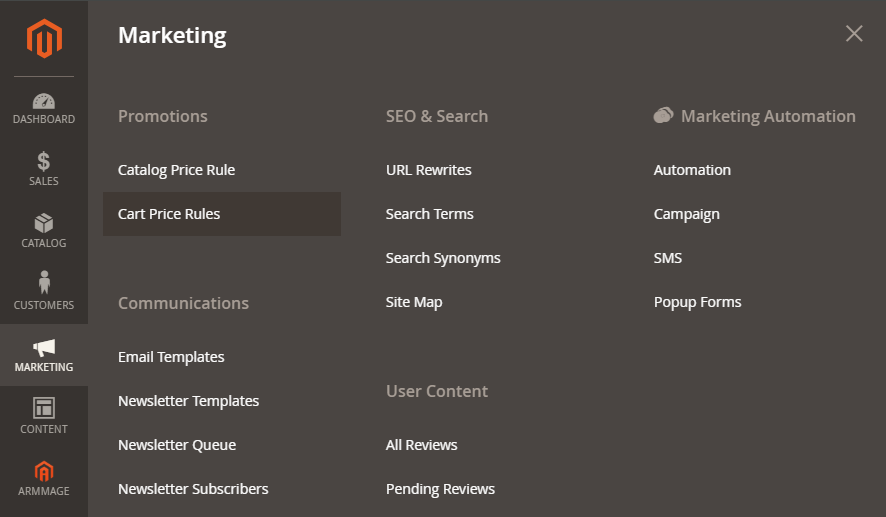
Promotions: Cart price rules and catalog price rules can be limited to specific customer groups. This means not every promotion has to be visible to every customer.
Customer addresses
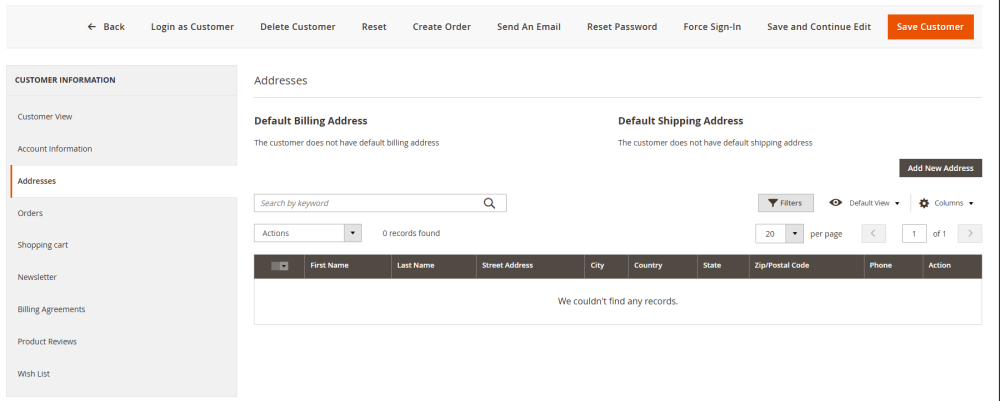
Magento customer accounts can store billing and shipping addresses. These two addresses are often the same, but they do not always mean the same thing.
A shipping address is where the order should be delivered. For example, this can be the customer’s home, office, warehouse, store branch, or another delivery location.
A billing address is the address connected with the payment or invoice. For example, this can be the customer’s legal address, company address, or the address connected to their payment card or accounting documents.
For a simple retail order, the billing and shipping address may be identical. But in many cases, they can be different.
Admins can also review or update addresses when supporting customers.
Customer activity and behavior
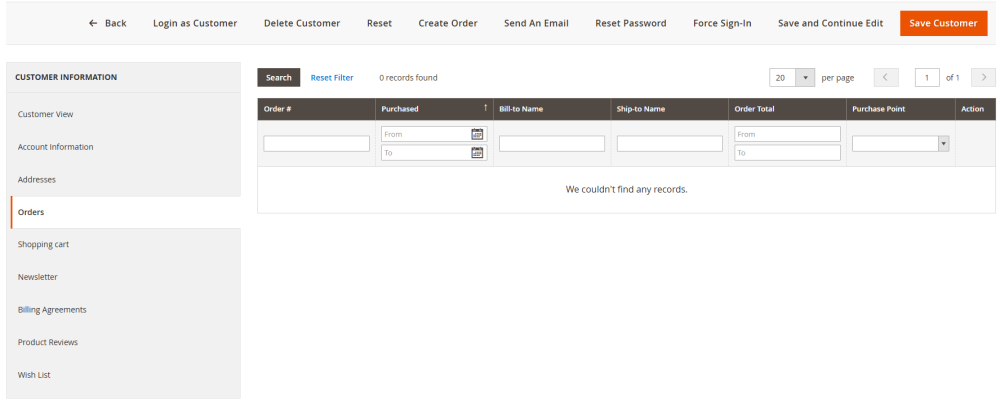
Magento can show useful customer-related information, such as orders, reviews, wishlists, and account activity depending on the configuration.
This helps admins understand how customers interact with the store.
For example:
- customers who often buy from one category
- customers who leave items in cart
- customers who add products to wishlist
- customers who write reviews
- customers who return regularly
In Adobe Commerce, customer segments can also be used to dynamically show content and promotions based on properties such as address, order history, and shopping cart contents.
For store admins and marketing teams, this can help create more relevant offers and better customer experiences.
How to manage customer groups step by step
Here is a simple admin guide.
To create a customer group
- Go to Customers → Customer Groups.
- Click Add New Customer Group.
- Enter the group name.
- Choose the tax class if needed.
- Save the customer group.
To assign a customer to a group
- Go to Customers → All Customers.
- Open the customer account.
- Find the customer group field.
- Choose the correct group.
- Save the customer.
To use a group in a promotion
- Go to Marketing → Cart Price Rules or Catalog Price Rules.
- Create or edit a promotion.
- Select the customer groups that should receive the offer.
- Save and test the rule.
This allows the store to create promotions only for specific customer types.
Best practices for managing customer accounts
Customer management should be organized and safe. Here are important best practices:
Keep customer groups simple. Do not create too many groups without a clear reason. Too many groups can make pricing, promotions, and admin work confusing.
Use clear group names. Names like “Wholesale,” “VIP,” “Retail,” or “Corporate” are easier to manage than unclear internal codes.
Limit admin permissions. Only trusted team members should be able to view or edit customer data. Customer information should be protected.
Review customer data regularly. Old, duplicate, or incorrect customer records can create confusion.
Test group-based pricing and promotions. If a special price is meant only for wholesale customers, test it before launch.
Document your customer rules. If different groups have different prices, taxes, or delivery methods, document the logic so the team understands how the store works.
Comments
Sign in to like or reply to comments.